Introducing Albums
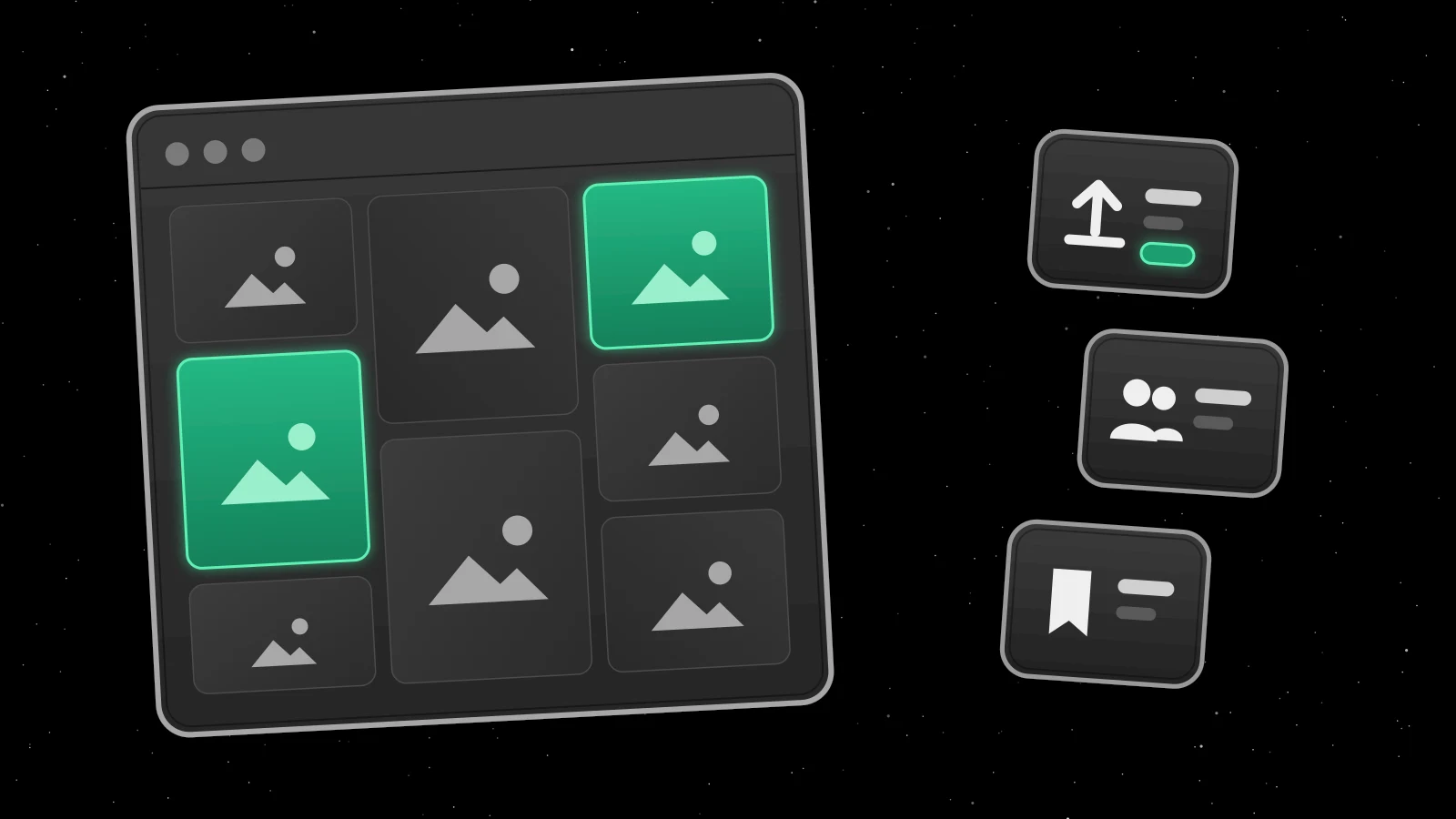
After an event, the photos usually end up in a shared drive, a group chat or on Instagram, and half your attendees never find them. With Albums, you can share them in Orbi, connected to the event they came from.
What's new?
Organizations can now create photo albums and publish them to their organization page, their events and the app.
- Upload up to 1,000 photos per album. On the web, drag in a whole folder. Photos up to 20 MiB upload at their original size. Larger files and duplicates are skipped.
- Connect an album to an event. The album is shown on the event page, and you can share it with everyone who had a ticket.
- Public or private. Make an album public for everyone, or keep it private and share it with attendees or selected memberships.
- Notify the right people. When you publish, choose whether to send a push notification to your followers, the event's attendees or your members.
- Manage on the go. Create albums and upload photos straight from your phone in the app.
For attendees
Students find albums from organizations they follow and events they attended under Albums in the app. They can save their favorite albums and photos, download photos in high quality and share them with friends.
Photos are only shown to people who are signed in, and anyone can report a photo to the Orbi team.
How to publish your first album
- Open your event in Admin and go to the Albums tab
- Select Create Album. The name is filled in for you, and the album is connected to the event.
- Drag your photos into the album
- Choose who can see it and select Publish
- Choose who to notify, and publish
You can also go to Albums in the Admin menu to create an album that isn't tied to an event.
Learn more
© 2026 Ornamental Tree AB
This site is protected by reCAPTCHA